I am not a designer. I am a developer.
But I work closely with designers, and for a long time, I watched them suffer through a very specific kind of torture: The Internationalization Shuffle.
They would design a beautiful UI. Then, they would open a massive spreadsheet of translation keys. Then came the manual labor: Copy key. Switch window. Paste text. Switch window. Copy German version. Switch window. Paste text.
It was painful to watch. It was slow, error-prone, and frankly, a waste of their talent.
So, I did what developers do when we see a repetitive task: I automated it.
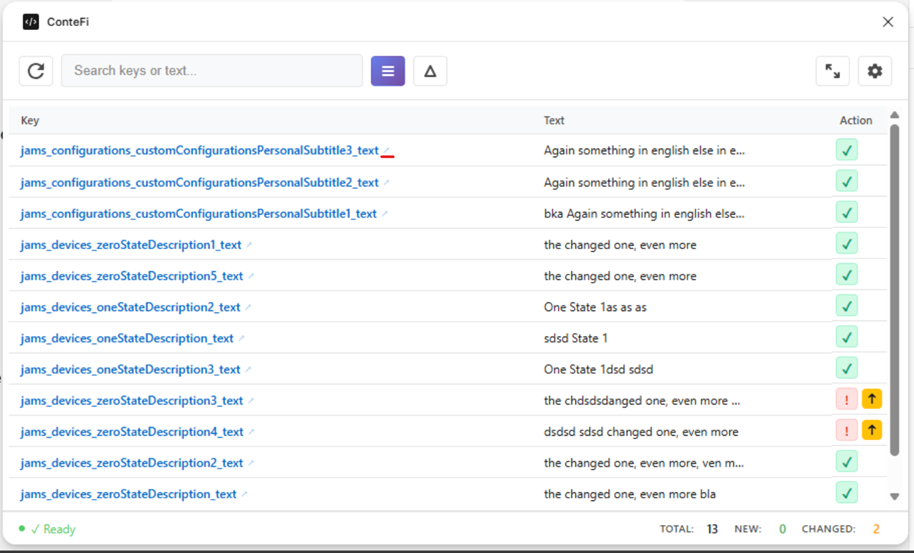
I built a plugin called ConteFi to bridge the gap between Figma and Contentful. My team has been using it internally, and it’s genuinely changed how they work—so I decided to open-source it.
The Problem: UI Labels Are “Data,” Not Just Pixels
In modern web development, we don’t hardcode text. We use translation keys (like app.buttons.submit or error.login.failed).
The problem is that these keys usually live in the codebase or the CMS (Contentful), while the visual design lives in Figma. Keeping them in sync is a nightmare.
- The Old Way: Designers type dummy text. Developers manually create keys in the CMS. Design reviews are messy because the text never matches production.
- The ConteFi Way: The Figma file talks directly to Contentful.
The Killer Feature: Two-Way Sync (Pushing from Figma)
Most plugins just let you “pull” text into Figma. That’s fine, but it ignores a huge part of the workflow: Designers are often the ones writing the copy.
When a designer creates a new “Sign Up” screen, they are inventing new buttons and labels.
With ConteFi, they can:
- Write the text directly in Figma.
- Name the text node btn_signup_confirm.
- Push it to Contentful with one click.
Suddenly, the designer isn’t just making a mockup; they are populating the production database. By the time I start coding, the keys are already there.
The Technical Setup: Using Contentful as a Dictionary
For this to work, you need to set up Contentful in a specific way. We aren’t using it for complex blog posts here; we are using it as a Key-Value Store for your application strings.
If you want to use this for your team, here is the exact architecture we use:
1. The Content Type
Create a new Content Type in Contentful. Call it “UI Label” or “App String”.
2. The Fields
You only need two fields:
- key (Short Text): This is the unique ID. This is what developers reference in the code (e.g., onboarding_welcome_title).
- value (Text): This is the actual string displayed to the user.
- Crucial Step: Enable Localization on this field.
3. The Result
Your Contentful data ends up looking like a dictionary:
| Key (key) | Value (value) |
|---|---|
| btn_save | Save Changes |
| btn_cancel | Cancel |
| msg_success | Update successful! |
4. The Magic Connection
In Figma, the designer simply names their text layer to match the Key (e.g., btn_save). The plugin connects the dots.
Why It Works
My designers started using this internally, and the productivity boost was immediate.
- No more context switching: They stay in Figma.
- Real-time Validation: They can instantly switch languages to see if “German” breaks the layout (spoiler: it always does).
- One Source of Truth: If the text is in Contentful, it’s in the design. If it’s in the design, it pushes to Contentful.
Get It (It’s Open Source)
I built this for my team, but I figured other devs and designers might find it useful. It’s free to use, and the code is up on GitHub if you want to see how I handled the API integration.
If you use Contentful for your app strings, give this a shot. Your designers will thank you.